
What trying-to-conceive mode tracks
Levvi’s trying-to-conceive mode keeps your daily cycle observations together. It is different from ordinary cycle tracking: after you turn on TTC, the Fertility tab shows an estimated fertile window, a calendar, and information for people who are trying. Levvi records what you enter; predictions are estimates and do not replace professional care.
Turn on TTC mode
Open Cycle in the app and go to cycle settings. Choose the trying-to-conceive option, say whether you are starting now or have already been trying, enter how long you have been trying, and provide the start date of your last period. Confirm, then return to the Fertility tab. If you already recorded a cycle, Levvi uses that history for the calendar; otherwise, the date you enter starts tracking.
Log a day
In Fertility, select the day you want to review and tap More or one of the quick log options. In the daily form, save only what you observed: basal temperature in Celsius, cervical fluid (dry, sticky, creamy, watery, or egg white), ovulation test result, sexual activity, sleep quality and times, and a free note. Tap Save when finished. Open another date in the calendar to correct or add to a log.
Use quick logs and the calendar
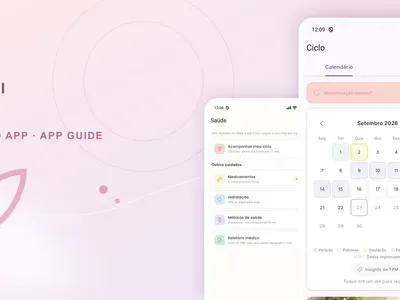
Fertility quick logs open sex, ovulation test, basal temperature, cervical fluid, pregnancy test, and notes; More opens the complete form. In Calendar, tap a date to review saved entries and check period, fertile-window, and ovulation markers. The screen may also show cycle day and a next-period estimate. Predicted dates depend on your history, so use them as a reference.
Tips for a useful record
- When possible, measure basal temperature at a consistent time.
- If a result changes, edit the correct date and save again instead of creating an unrelated note.
- Use notes for context that a field cannot capture, such as measuring at a different time.
Frequently asked questions
Can I use ordinary cycle tracking without trying? Yes. Ordinary cycle tracking remains separate; turn on TTC only when that is your intention. Will Levvi delete a day if I leave fields blank? No. Save the fields that apply to that day. Can I share with my partner? Use Share with partner and the QR code available in Fertility, and review the sharing screen before sending.
Next steps
After a few logs, review the calendar and basal-temperature chart in Fertility. When pregnancy is confirmed through the app flow, use the activation option to leave TTC mode and open My pregnancy. Do not keep both modes active at once.
In practice, choose a date in the calendar before tapping More: the form uses that date as its reference. Quick logs do not skip saving, so confirm the success state before closing the sheet. To review history, return to the date and check the fields shown in the day summary. If you log protected or unprotected sex, select the matching option in the sexual-activity section; Levvi does not infer it. The basal-temperature chart appears farther down the same tab, after the logging cards.
In practice, choose a date in the calendar before tapping More: the form uses that date as its reference. Quick logs do not skip saving, so confirm the success state before closing the sheet. To review history, return to the date and check the fields shown in the day summary. If you log protected or unprotected sex, select the matching option in the sexual-activity section; Levvi does not infer it. The basal-temperature chart appears farther down the same tab, after the logging cards. The selected date stays visible while you move between sections, which helps prevent saving an observation to the wrong day.