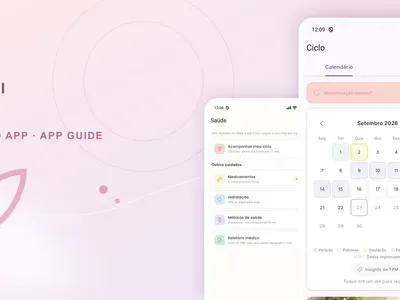

What My pregnancy includes
My pregnancy is Levvi’s area for following your current week and organizing practical pregnancy records. The main screen shows the week, its illustrated fruit, highlights, and shortcuts to log today. It also links to Journey, Tools, and Plan. The app is for information and organization; discuss clinical decisions with your care team.
Open and set it up
Open My pregnancy from the Levvi menu. If you just confirmed pregnancy, complete the activation flow and enter the requested date so the week can be calculated. Levvi may use the start of your last period or your estimated due date, depending on the flow shown. If a date is missing, Levvi may ask you to complete your profile before showing the week.
Follow the week and log today
On the main screen, check the week and move along the week strip to view another stage. Use Share week when you want to send the week card. To create a record, tap Log today. Depending on your week and profile, you may open symptoms, belly photo, nausea and vomiting, or the kick counter. Save each record when finished and use Undo when the screen offers it.
Find Tools
Tap the tools icon at the top of My pregnancy or open Tools from the screen shortcut. Tools contains symptom logging, kick counting, contraction tracking, and other cards that may appear as the week changes. In the kick counter, tap to add a kick and use history to review sessions; an action is available to undo the last one. In the contraction panel, use start and stop to record a contraction and see duration and interval. For labor or an urgent concern, follow instructions from your care team.
Use Journey and Plan
The compass icon opens Journey. Tap an item to read its details, mark it done, or create a reminder when that action is available. Open Plan from the three-dot menu to fill out the birth plan by section. You can move forward, skip a question, and review answers; then use Share or generate a PDF when those buttons are enabled. Fill it in gradually: Levvi lets you return and edit answers.
Practical tips
- Log information when it happens so you do not have to rely on memory.
- Use Journey to turn guidance into a reminder and Plan to save preferences to discuss.
- Review the displayed week after changing a pregnancy date; if it looks wrong, check your profile.
Frequently asked questions
Can I edit the pregnancy date? Open settings from the three-dot menu and review the data when that option is available. Does the kick counter replace medical advice? No; it organizes your records and does not determine care. Do I need to finish Plan in one sitting? No. Save in stages and return whenever you want.
Next steps
After exploring My pregnancy, customize Journey, log what matters in Tools, and begin Plan. Share only the cards or files you actually want to send.
To return to the right area quickly, use the top icons: the compass opens Journey, the wrench opens Tools, and the three-dot menu contains Plan. In Tools, scroll to the section you need and use the buttons on that card; symptom logging opens a separate sheet. In Plan, fields may be text, single choice, or multiple choice depending on the question. Review before sharing, and generate the PDF only after saving your answers.
To return to the right area quickly, use the top icons: the compass opens Journey, the wrench opens Tools, and the three-dot menu contains Plan. In Tools, scroll to the section you need and use the buttons on that card; symptom logging opens a separate sheet. In Plan, fields may be text, single choice, or multiple choice depending on the question. Review before sharing, and generate the PDF only after saving your answers.